
I used to underestimate how valuable Twitter Lists were, until I lost them. I wish I knew how to export all Twitter lists before….
For years, I built dozens of lists:
experts, founders, journalists, AI researchers, marketers, designers, niche communities… you name it. These lists became the backbone of how I learned, found content ideas, tracked trends, and followed the right people without cluttering my main feed.
Then one day, my account got suspended without warning.
When I opened a new account, every single list I had ever created was gone.
Years of collecting, curating, organizing, grouping, disappeared in seconds.
Rebuilding everything from scratch wasn’t just frustrating; it taught me a very important lesson:
If your lists only live inside Twitter, you don’t really own them.
And if something happens to your account, your lists disappear with it.
From that moment on, I promised myself one thing:
Never build a list I can’t export and save.
Why Twitter Lists Matter More Than You Think
Before we talk about exporting, it’s worth remembering why lists are so powerful.
Twitter Lists are not just “collections of users.”
They are:
- your intel sources
- your research database
- your expert tracking system
- your inspiration feed
- your community mapping tool
- your competitor monitoring dashboard
Lists help you follow thousands of accounts without losing focus.
They create clean, topic-specific timelines that are actually useful.
But they only work inside Twitter, unless you export them.
Why Exporting Lists Is a Game-Changer
When you export a list, suddenly it becomes useful everywhere:
🔹 You can import it into Notion, Airtable, or Excel for analysis.
🔹 You can build outreach databases.
🔹 You can group creators by niche.
🔹 You can map communities and engagement patterns.
🔹 You can back everything up in case your account gets restricted or deleted.
🔹 You can use your lists as content idea generators.
In other words:
Your lists become an asset, not just a timeline.
Twitter Doesn’t Let You Export Lists
Twitter allows you to:
- create lists
- subscribe to lists
- add and remove members
…but it does not give you any way to export list members.
No CSV file.
No export button.
No way to download users.
Nothing.
So if you want to use your list outside Twitter, you’re stuck copying usernames one by one, which is ridiculous in 2026.
That’s when I switched to a tool that actually solves this: Circleboom Twitter.
The Tool I Use to Export My Twitter Lists: Circleboom Twitter
Circleboom Twitter has been the easiest and safest way for me to export lists, and pretty much every other type of Twitter data I need.
First, the important part:
Circleboom is an official partner of X, meaning it uses official, safe APIs and follows platform rules.

No shady third-party scraping. No risk.
Second, it’s not just for list exports.
It can export:
➡️ your followers
➡️ your following
➡️ any account’s followers/following
➡️ your tweets
➡️ and of course, your Twitter Lists
And thanks to its List Manager, you can see all your lists in one place, manage them, clean them up, and export them whenever you want.
It’s exactly the solution Twitter never built.
How I Export My Twitter Lists (Step-by-Step)
Here’s the exact process I follow now — it takes less than a minute.
Step #1: Log in to Circleboom Twitter
Open Circleboom Twitter and log in with your X account through the official authorization screen.

Step #2: Go to the “X List Manager” on the Left Dashboard
Inside the dashboard, look at the left-side menu and click X List Manager.
You’ll see two options:
- Manage Your Lists — lists you’ve created or subscribed to
- Lists You Are On — lists where others have added your profile
Select Manage Your Lists to export your own or followed lists.
If you want to view the lists that include you, choose the second option.

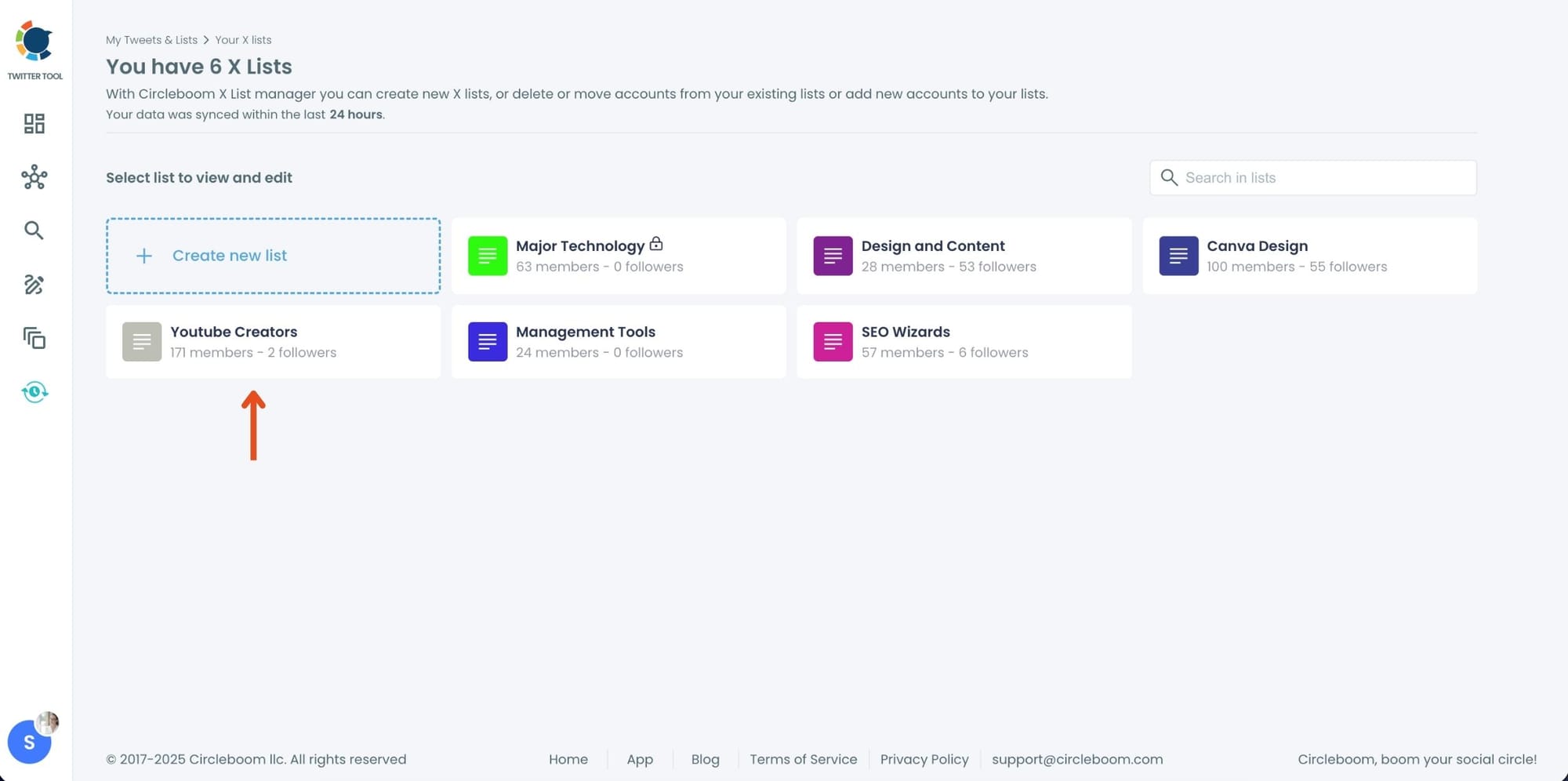
Step #3: Open the List You Want to Export
Circleboom will load all of your lists in one place.
Click the list you want to export.
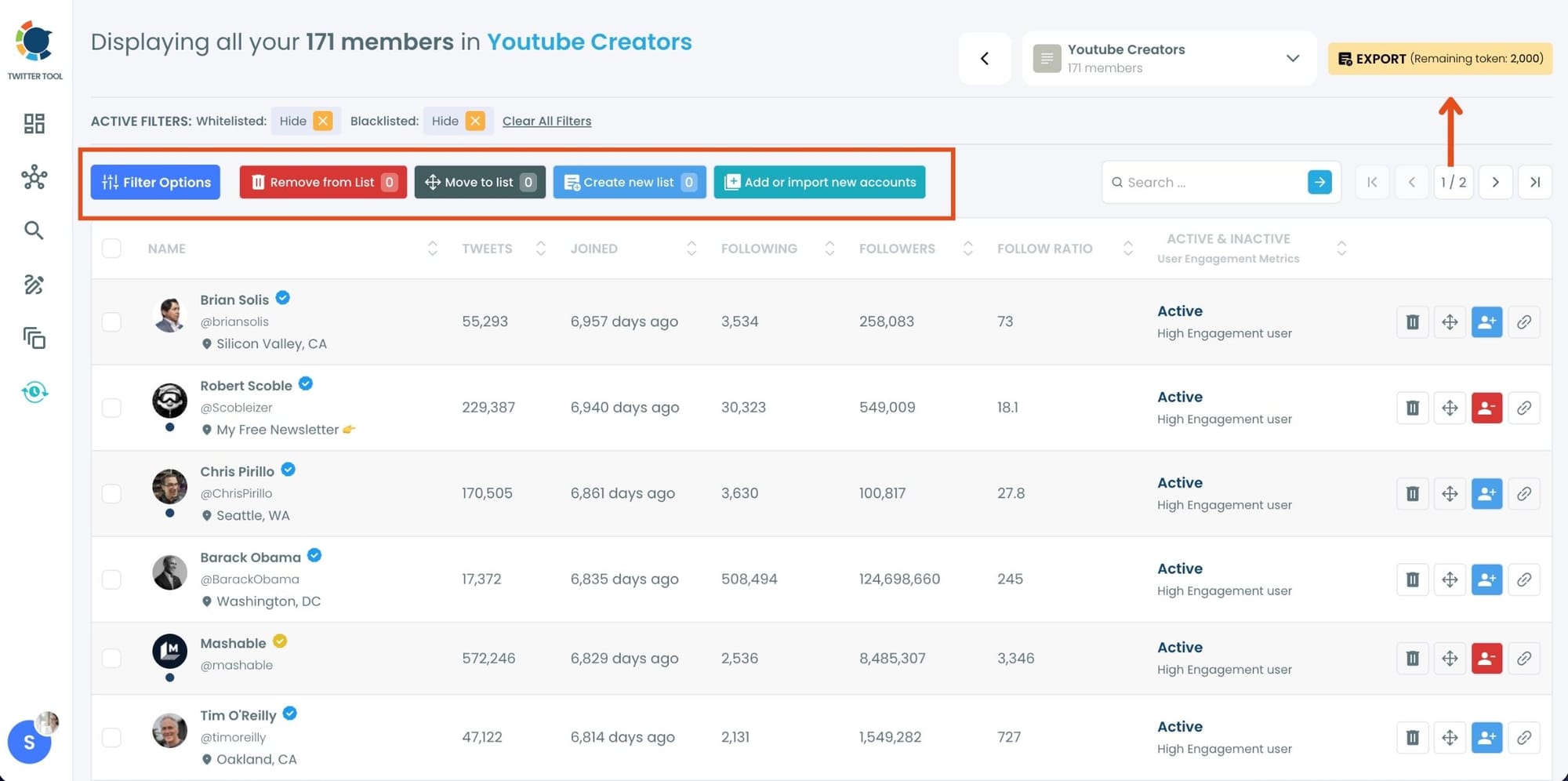
Step #4: Review and Manage the List Members (Optional)
Circleboom displays all members of that list along with helpful details:
- Follower count
- Following count
- Tweet count
- Verification
- Profile info
Here you can manage the list:
- Remove accounts
- Move accounts to another list
- Add new accounts
- Follow/unfollow list members
This is useful if you want to clean up the list before exporting.
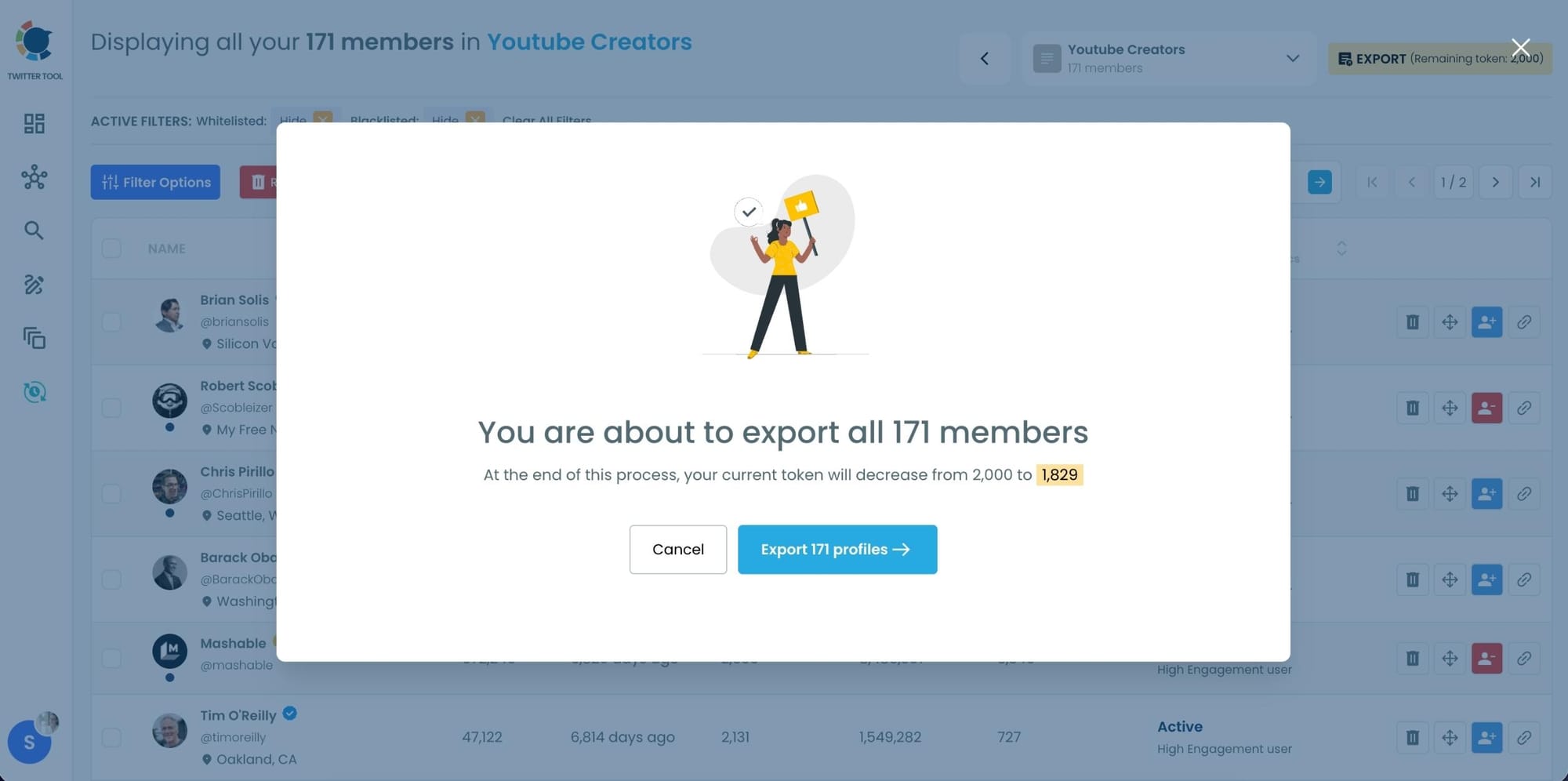
Step #5: Export the List
Click the Export button on the upper-right corner.
Circleboom will generate a detailed CSV file containing:
- Usernames
- Display names
- Profile URLs
- Follower/following counts
- Tweet count
- And more..
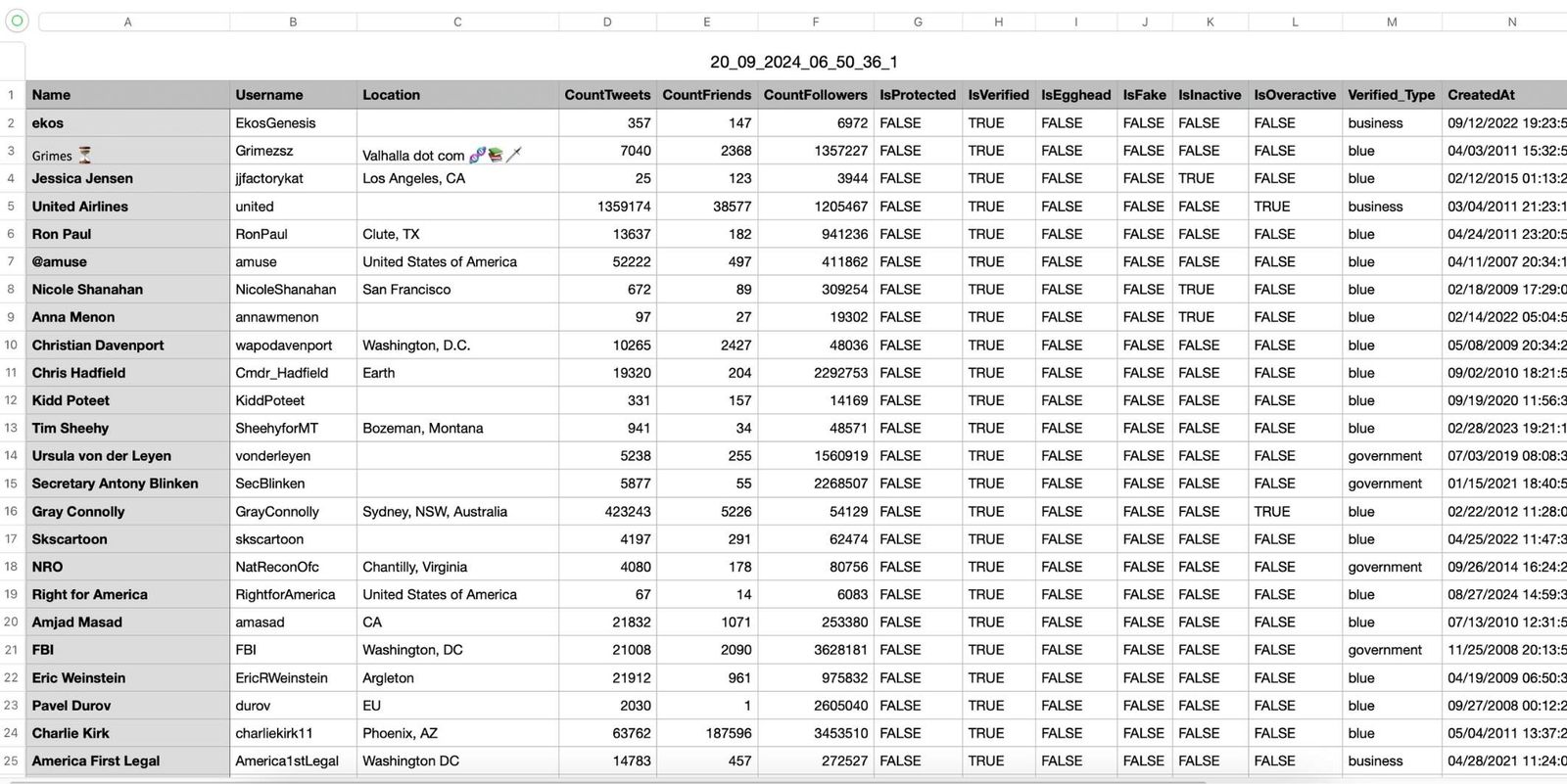
Download your file, and your export is ready to use anywhere.
What I Do With Exported Lists (This Changed Everything)
Exporting my lists opened up a smarter workflow:
1. Better Content Research: I track experts, niche communities, and thought leaders in sheets, easier to filter and sort.
2. Smarter Engagement: I use exported lists to plan who to reply to, quote, or interact with daily.
3. Outreach & CRM:
Founders → outreach
Journalists → PR
Creators → collabs
Users → audience mapping
4. Competitor Monitoring: I export competitors’ lists and analyze their engagement patterns.
5. Proper Backups: Twitter lists disappear.
Spreadsheets don’t.
Lessons Learned
Losing my Twitter Lists once was painful.
It meant rebuilding years of curated knowledge and relationships.
But it also taught me something important:
If you don’t export your lists, you don’t really own them.
Now I export every list I build, not just for safety, but because once they’re outside Twitter, they become far more powerful and useful.
And Circleboom Twitter made that incredibly easy.