
When I first joined X (formerly Twitter), I didn’t think much about who could see my “Following” list. But one day, I realized something, anyone could open my profile and instantly see every account I followed. From influencers and creators to brands and private profiles, that list revealed far more than I wanted.
So, can people really see who you follow on X?
Yes and here’s what you can do if you want to hide it.
Yes, People Can See Who You Follow
By default, your Following list is public. Anyone can tap “Following” on your profile and view every account you follow.
Even if you make your account private (protected), your approved followers will still be able to see your Following list. In short, there’s no built-in option to completely hide it from everyone.
Option 1: Make Your Account Private (With Limitations)
The first option is to make your account private so that only approved followers can view your profile details.
Here’s how to do it:
- Go to Settings and Privacy.
- Tap Privacy and safety.
- Select Audience and tagging.
- Turn on Protect your posts.
This hides your Following list from non-followers, but your approved followers will still see it.
If you want nobody to access that list, you’ll need a better approach.
Option 2: Use Private Twitter Lists to “Follow Without Following”
The best way to stay private is by using Private Lists.
Twitter Lists let you organize accounts you want to read, without following them directly. When you make a list private, only you can see it, not even the accounts you’ve added.
How to Create a Private List on X:
- Open the Lists tab on X.
- Tap Create new List.
- Add a name and description.
- Toggle “Keep private” before saving.
- Add accounts manually to your private list.
After adding them all, you can unfollow these accounts, your feed stays private, but your Lists timeline still shows their tweets.
But Doing This Manually Is Exhausting
If you follow hundreds or thousands of people, manually moving each one to a list is painful.
You’d have to:
❌ Visit every profile individually.
❌ Click “Add to List.”
❌ Double-check who’s already added.
❌ Then unfollow each account one by one.
It’s time-consuming, repetitive, and nearly impossible to track.
That’s when I decided to use a smarter, automated, and completely safe method.
That’s Why I Use Circleboom Twitter
I use Circleboom Twitter, an official X Enterprise customer that follows all API limits and keeps accounts safe from suspension.

Circleboom automatically displays my full following list in one place — even the accounts that X stops showing after endless scrolling. It gives detailed insights like usernames, bios, verification status, and activity level.
And the best part?
✅ It lets me add all my followings to a Twitter list — even a private one — with its Twitter List Manager.
No manual effort, no profile-by-profile work. Just smart automation.
How to Hide Your Following List with Circleboom
Here’s how to do it step by step:
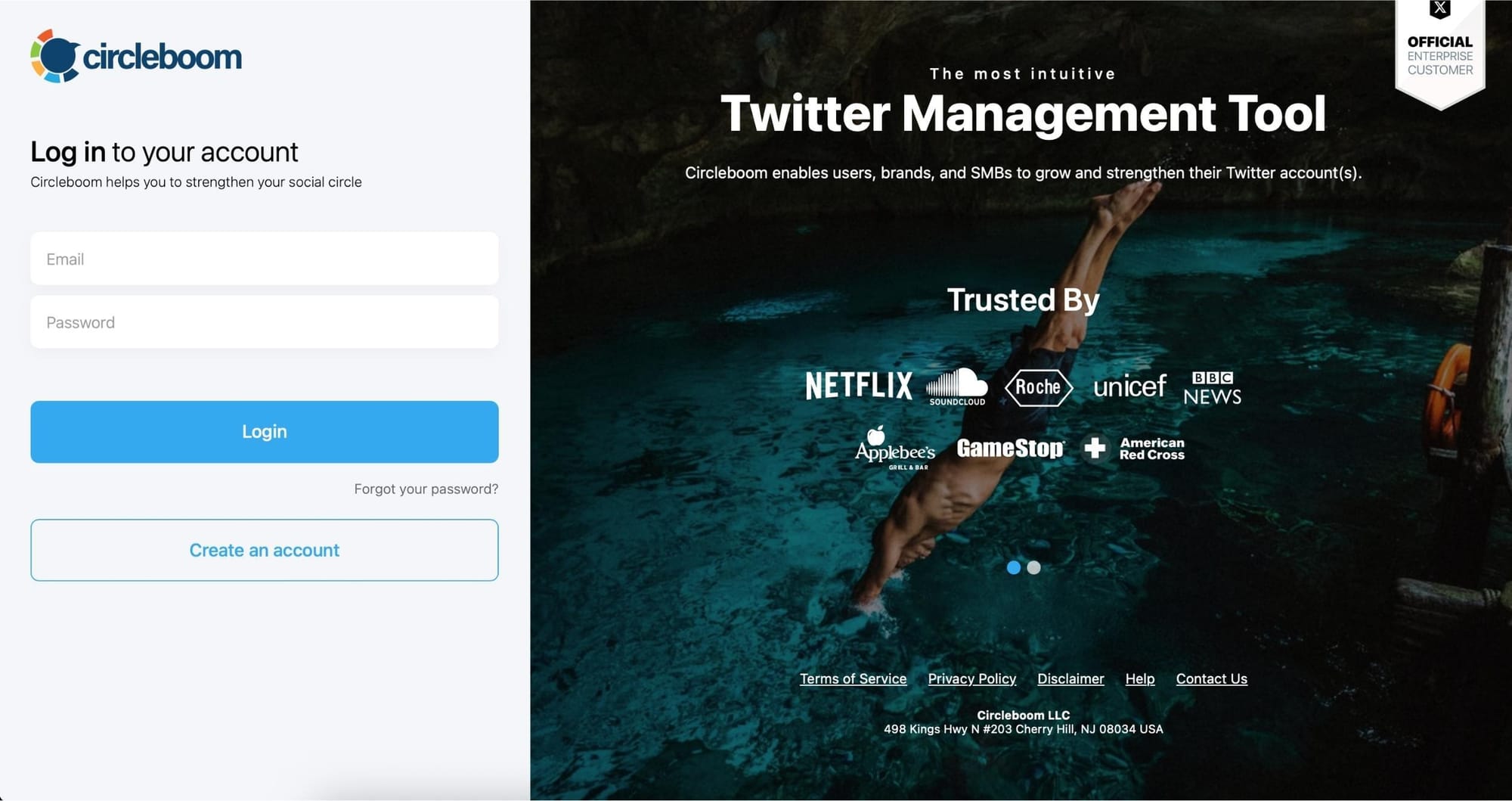
Step #1: Log in to your Circleboom Twitter account.
If you don’t have a Circleboom account, you can create one in seconds to manage your Twitter with the excellent features of Circleboom Twitter.
Step #2: Navigate to the left menu and find “Following” there.
Then you should click on “All Your Following”. Circleboom will list all your Twitter friends.

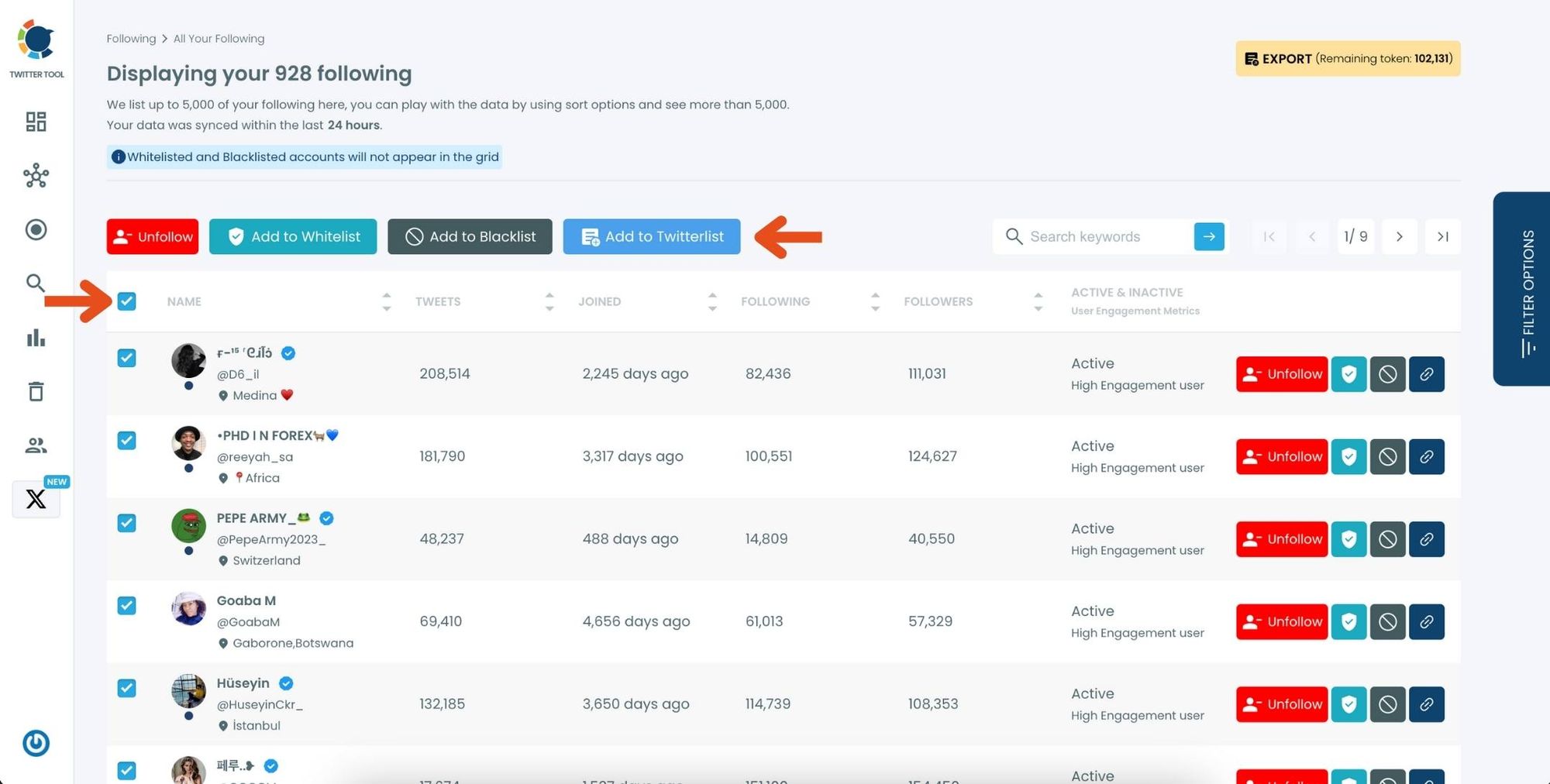
Step #3: Here is the list of your following. You can select all of them or some.
Once you select them, you can click on the “Add to Twitterlist” button ( blue one ). You can create a new Twitter list or add them in bulk to an existing list.
Create a new Twitter list or add your following to an existing list.
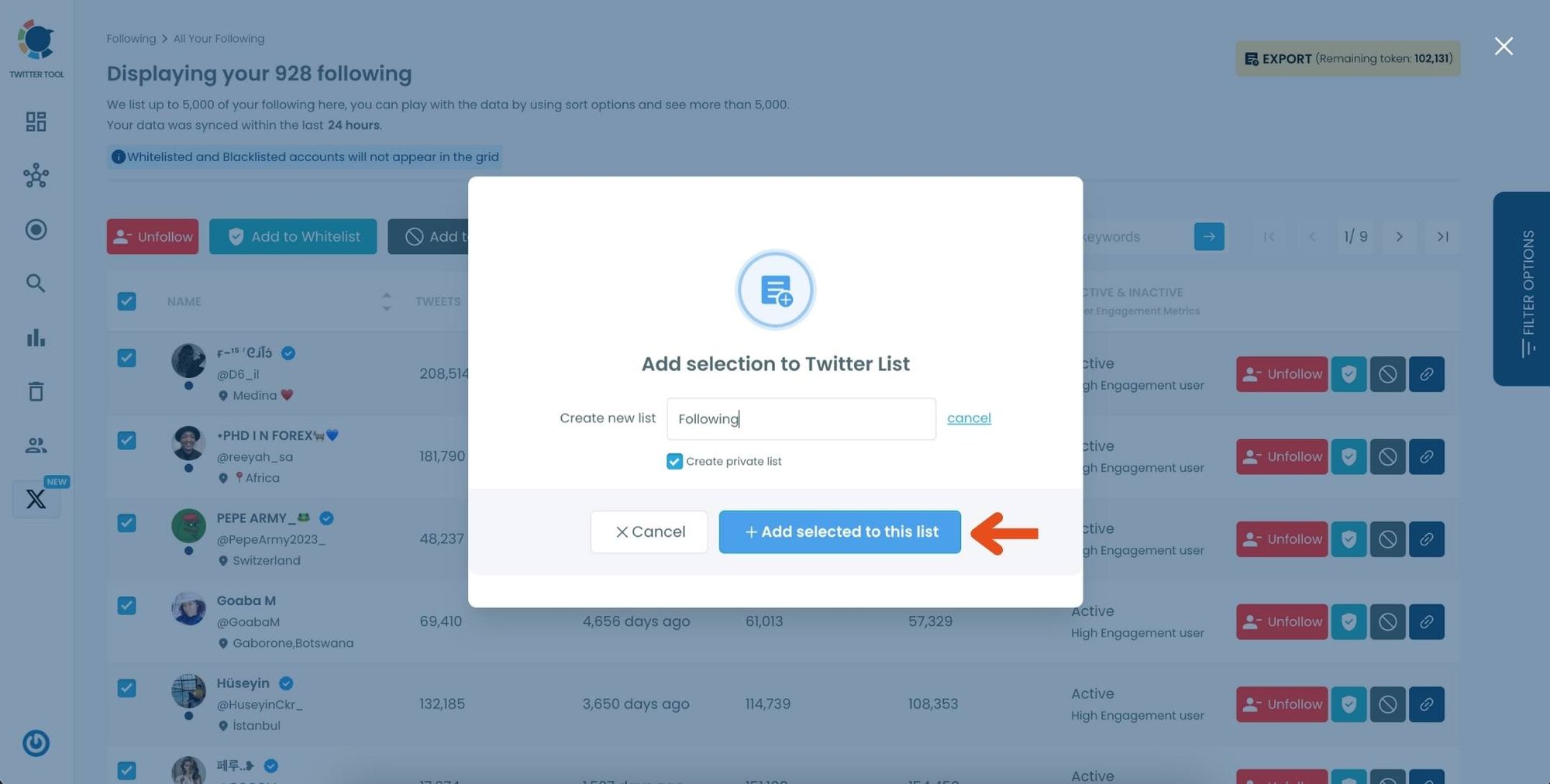
Now all your following are on the new private list.
The next step is unfollowing them.
With Circleboom, You Can Unfollow Everyone with One Click
Circleboom doesn’t just help you organize your followings — it also helps you unfollow them all safely with one click.
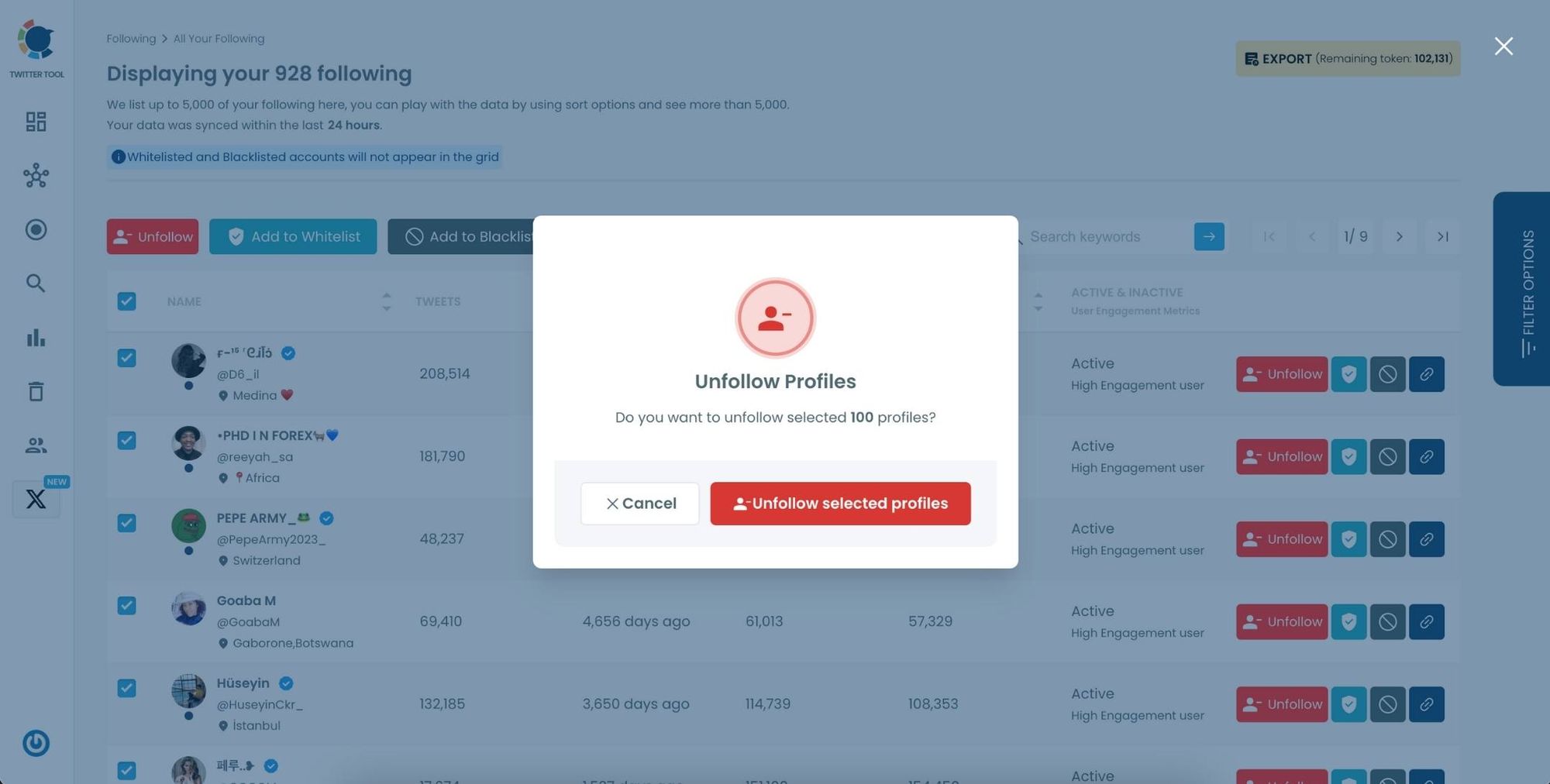
If you want to completely hide who you follow, simply use Circleboom’s mass unfollow tool.
It lists all your followings in one place, lets you filter them, and then you can unfollow everyone automatically while keeping your account safe within X’s API rules.
No need to scroll endlessly or click “Unfollow” hundreds of times, Circleboom handles it instantly.
Bonus: Back Up Your Following List First
Before unfollowing or moving accounts, you can export your full following list to a CSV file with Circleboom.
This includes details like usernames, bios, follower counts, and creation dates, so you always have a backup if you ever need it.
Final Thoughts
Yes, people can see who you follow on Twitter.
Making your account private limits access, but it doesn’t fully hide your list.
If you want complete privacy, the best solution is to use Private Lists, and to save hours of manual work, Circleboom Twitter is your best friend.
It lets you view your entire following list, create private lists automatically, and even unfollow everyone with one click — safely, instantly, and in full compliance with X’s rules.
Stay private, stay organized, and keep control of your account with Circleboom.